Free Screen-Sharing and Remote Support Apps: How to Use Them Safely
A guide to free screen-sharing and remote support apps like Quick Assist, Chrome Remote Desktop and FaceTime screen sharing: which to use for family or customers, step-by-step setup, and the safety rules that stop remote access scams.
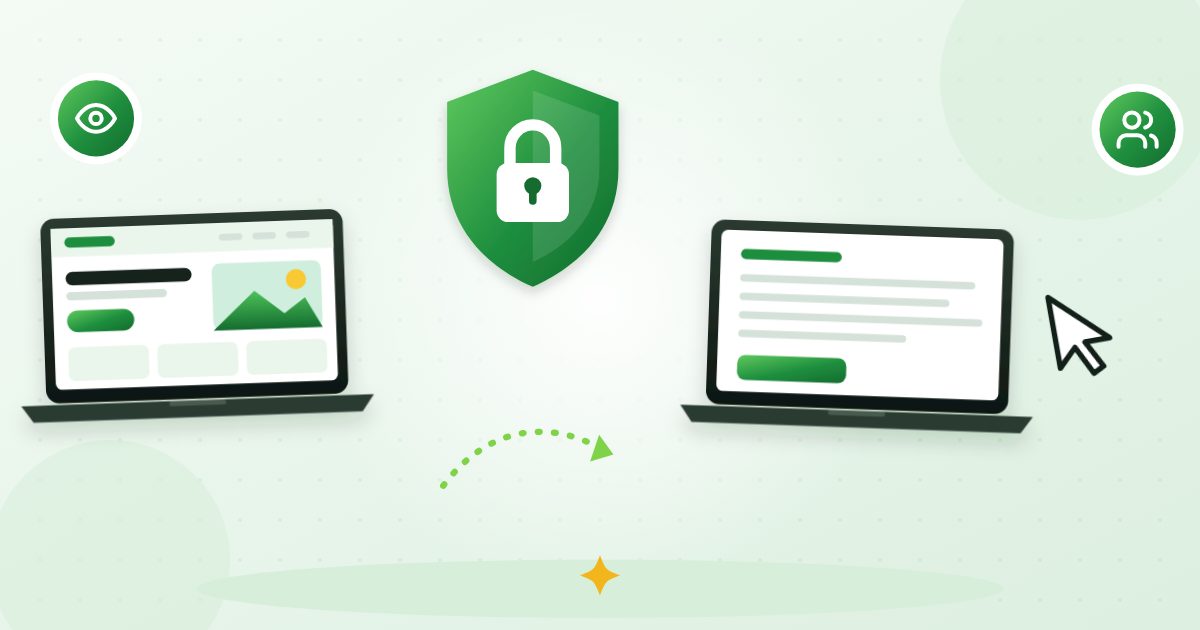
Remote support apps let you see someone else's screen, or let them see yours, and in many cases take control of the mouse and keyboard from miles away. They are a lifesaver when a parent cannot find a setting, a client needs help with your software, or a teammate is stuck on a spreadsheet.
They are also the favorite tool of tech support scammers, who talk people into installing one and then help themselves to bank accounts and files. This guide covers the main free options, how to choose between them, and the safety habits that let you use them without worry.
Screen sharing vs. remote control
These words get used loosely, so it helps to separate them:
| Type | What the helper can do | Typical use |
|---|---|---|
| Screen sharing (view only) | See the screen, sometimes point or annotate | Walking someone through steps, showing a demo |
| Remote control | Move the mouse, type, open files and settings | Fixing a problem directly, installing software |
| Unattended access | Connect any time without the other person present | Managing your own home computer or a business PC |
Unattended access is the most powerful and the riskiest. For helping family or customers, attended sessions, where someone on the other end must approve each connection, are safer.
The main free options
Features and free-plan terms change, so the details below are accurate as of November 2026. Check each provider's help pages before relying on them for business use.
Microsoft Quick Assist (Windows)
Quick Assist is Microsoft's tool for helping someone with a Windows 10 or Windows 11 PC. According to Microsoft's documentation:
- The helper must sign in with a Microsoft account. The person getting help does not need to sign in.
- The helper selects Help someone and receives a short, time-limited security code. The other person opens Quick Assist (search for it in Start, or press Ctrl + Windows key + Q), selects Get help and enters the code.
- The person sharing must click Allow to share their screen. The helper can view and annotate, and can request control, which the other person must also approve.
- Some prompts, such as administrator approval windows, still need the person at the computer to respond.
Quick Assist is a good default for helping friends or relatives who use Windows, because it is built by Microsoft and installed from the Microsoft Store.
Chrome Remote Desktop (Windows, Mac, Linux, ChromeOS)
Google's Chrome Remote Desktop runs through the Chrome browser and works across operating systems. It has two modes:
- Remote Support: The person who needs help goes to the Chrome Remote Desktop website, installs a small helper, and generates a one-time access code that expires after a few minutes. They read the code to the helper, who enters it and connects. The person sharing must approve the connection.
- Remote Access: Lets you set up unattended access to your own computers, protected by a PIN. Use a long PIN and only set this up on machines you own.
It needs a Google account, and it is free.
Mac Screen Sharing
Macs include a Screen Sharing feature for connecting to other Macs. It is convenient within a household or office where you know both computers, but the setup is less beginner-friendly than the cross-platform tools above.
FaceTime screen sharing (iPhone and iPad)
You can share your iPhone or iPad screen during a FaceTime call. Starting with iOS 18, Apple added the ability for the other person to request remote control of your screen during the call, which you must approve. It is useful for helping a relative find a setting on their iPhone, but only use it with people you know well.
Video meeting apps
Zoom, Google Meet and Microsoft Teams all include screen sharing, and some (such as Zoom) let participants request remote control. For a quick walkthrough with a client, the meeting tool you already use is often enough. Our guide to improving video call quality helps when a shared screen looks blurry or laggy.
TeamViewer and AnyDesk
These popular third-party apps offer free use for personal, non-commercial purposes under their current terms, with paid plans for business use. If you help customers or clients as part of your job, you will likely need a paid license. Read their licensing pages before using them for work.
Which one should you use?
| Situation | Good choice |
|---|---|
| Helping a parent or friend with a Windows PC | Quick Assist |
| Helping someone on a Mac or Chromebook, or across platforms | Chrome Remote Desktop (Remote Support) |
| Helping someone with an iPhone setting | FaceTime screen sharing |
| Showing a client a website or document | Your video meeting app |
| Reaching your own home computer while traveling | Chrome Remote Desktop (Remote Access) with a strong PIN |
| Supporting many customers as a business | A paid remote support plan with logging and user management |
A safe step-by-step session
Here is a routine that works with almost any tool:
- Agree on the call first. The person needing help should know who you are and expect the session. Start with a phone call or video call you initiated together.
- Use the official source. Install apps only from the Microsoft Store, Apple's App Store, Google's official site or the vendor's real website. Never follow a download link in an unexpected email or text.
- Close sensitive windows. Before sharing, close banking tabs, email, password manager windows and private documents.
- Share only what is needed. Many tools let you share a single window instead of the whole screen.
- Give control only when necessary, and watch the screen the whole time.
- End the session clearly. Click Stop sharing or End, and close the app.
- Remove unattended access you no longer need. Check the app's settings for saved devices and remove old ones.
How remote access scams work, and how to spot them
The FTC warns that tech support scammers often pose as well-known companies, use alarming pop-ups or calls about a "virus" or "hacked account," and then ask you to install a remote access app. Once connected, they may fake a problem, demand payment by gift card, wire transfer or cryptocurrency, or log into your bank while you watch a fake progress screen.
Red flags include:
- You did not start the contact. A call, text or pop-up says there is a problem with your computer, bank account or subscription. The FTC notes that legitimate tech companies do not call, email or text out of the blue to say your computer has a problem.
- A pop-up with a phone number and a warning not to turn off your computer. Real security warnings do not ask you to call a number.
- Pressure and secrecy. They insist you stay on the line or not tell your bank.
- A request to log into your bank "to process a refund" while they have control.
- Payment by gift card, wire transfer, cryptocurrency or payment app.
If you suspect a scam, hang up, end the session, disconnect from the internet, and run a security scan. Then change passwords from a different, trusted device and contact your bank. Report it at ReportFraud.ftc.gov. Our guide on how to recognize tech support scams covers what to do next in more detail.
Extra protection for small businesses
If you provide remote support to customers:
- Tell customers how you will contact them and that you will never ask for passwords or payment details during a session.
- Use a business plan that logs sessions and lets you remove access when an employee leaves.
- Turn on two-factor authentication for every helper account. See how to protect your online accounts.
- Never ask a customer to read passwords aloud. Have them type it themselves while you look away or pause sharing. Strong, unique passwords from the password generator stored in a password manager reduce the damage if a session goes wrong.
- Record fixes for repeat questions. Short tutorial recordings can replace many sessions; see screen recording tools for tutorials.
Frequently asked questions
Is Quick Assist safe?
Quick Assist itself is a legitimate Microsoft tool, but scammers have used it to get access by pretending to be support staff. It is safe when you know and trust the person helping you and you started the contact yourself.
Can someone access my computer without my permission through these apps?
Attended tools like Quick Assist and Chrome Remote Desktop's Remote Support mode require you to enter a code and approve the connection. Unattended access setups are different, so remove any you did not set up yourself.
What is the best free remote desktop app for helping family?
For Windows users, Quick Assist is the simplest. For mixed devices, Chrome Remote Desktop works across Windows, Mac, Linux and ChromeOS. For iPhones, FaceTime screen sharing is built in.
Should I uninstall remote access apps I am not using?
Yes. If you installed a remote access app for a one-time session, or do not recognize one, uninstall it. Fewer ways into your computer means less risk.
Spotted an error? Tell us and we will review it under our editorial policy.